The quick answer
Yes — Gemini Notebook is free with a Google account. No card, no trial, no end date:
- 100 notebooks, up to 50 sources each — PDFs, slides, docs, links, audio.
- Every Studio tool — overviews, flashcards, quizzes. The free plan limits usage, not formats.
- Answers only from your sources, with clickable citations to the exact passage.
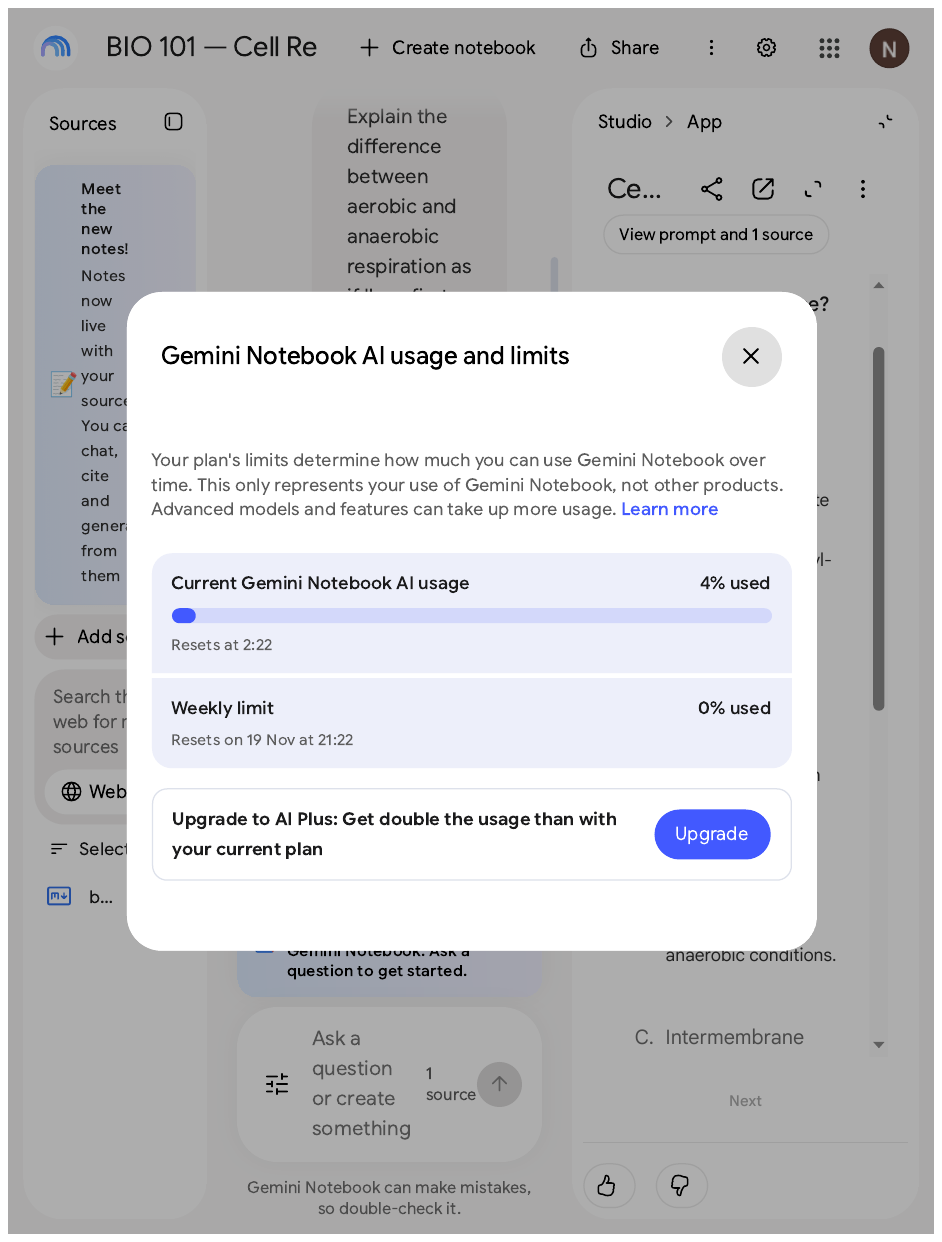
- Usage is a budget, not a count. Since 2 September 2026 there is no fixed daily number of chats or overviews — your allowance refreshes every five hours, up to a weekly limit.
- Paid plans only raise the ceilings.
Every limit and price here was checked on Google's official pages on 12 November 2026.
NotebookLM vs Gemini Notebook — what is the name?
On 16 July 2026, Josh Woodward announced for Google that NotebookLM was being renamed Gemini Notebook: "We're renaming NotebookLM to Gemini Notebook. It's the same standalone product, now doing more across the Google ecosystem."
Two consequences. First, the address moved: notebooklm.google.com now redirects to notebook.google.com, and Google's help pages say Gemini Notebook throughout. Second, notebooks now live inside the Gemini app too, syncing both ways. This guide uses both names. Google's rename announcement, 16 July 2026.
What the free plan includes
The free tier is Gemini Notebook Standard. Sign up free with a Gmail account, or a qualifying Workspace or Education licence.
| What you get | Free plan (Standard) |
|---|---|
| Notebooks per account | 100 |
| Sources per notebook | 50 |
| Size of one source | Up to 500,000 words or 200 MB per file; no page limit |
| Studio tools | All: Audio/Video Overviews, Reports, Flashcards, Quizzes, Mind Maps, Data Tables, Infographics, Slide Decks |
| Chat | Answers only from your sources, with citations |
| Custom chat and analytics | Included for everyone |
| Advanced sharing | Paid plans only |
| Visible watermark toggle | Paid only (Pro+; auto-applied in India, South Korea, Vietnam) |
| Price | $0 |
Counts and source size: Google's plans page, sources page. Checked 12 November 2026.
Sources can be PDFs, Google Docs, Slides and Sheets, Word, PowerPoint, text, Markdown, CSV, images, audio, web links, YouTube links, ePub, Play Books ebooks, pasted text, Gemini chats. A source fails to import if it is over 500,000 words, over 200 MB, or a copy-protected PDF.
Two details students miss. First, Google sometimes generates a report, flashcards, an infographic, a slide deck, or an audio or video overview when you first add sources — made once, and they do not count towards your limits. Second, the per-source ceiling never moves: every plan caps one source at 500,000 words or 200 MB.
Flashcards and quizzes: the Explain button
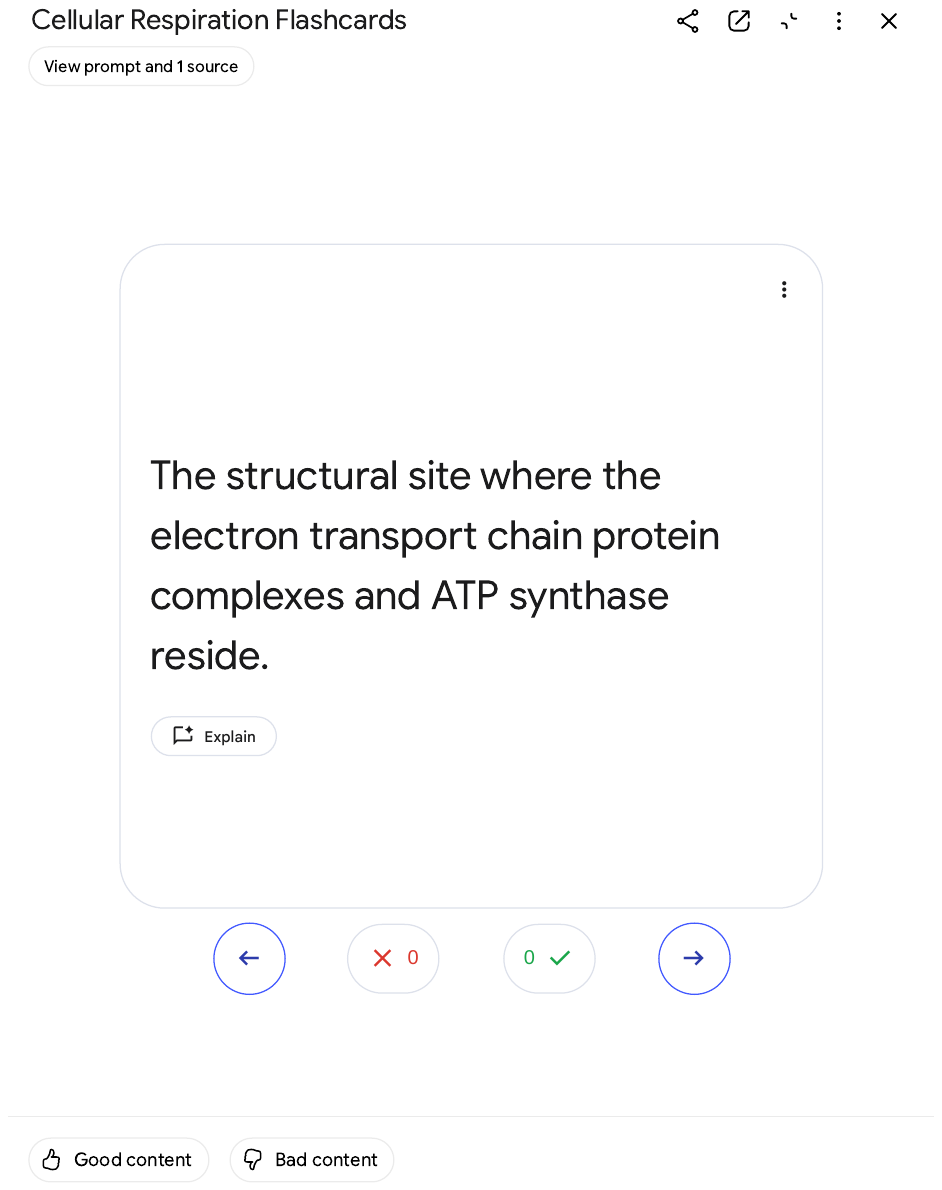
Both live in Studio. Select Flashcards or Quizzes, or tap the pencil icon first: pick easy, medium or hard, fewer, standard or more cards, and a prompt setting topic, audience and focus. They generate in the background.
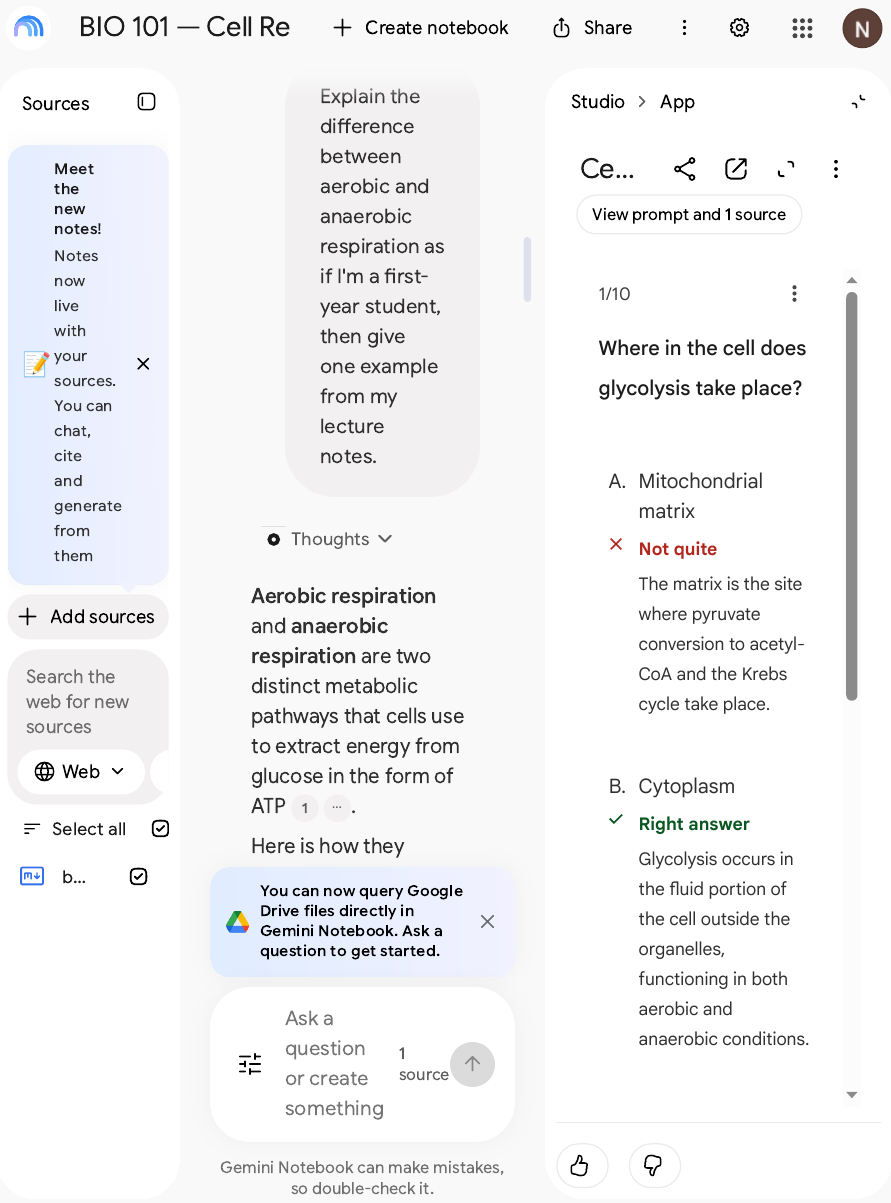
Mark each flashcard "Got it!" or "Missed it!" — progress is remembered, so you can retake the same, all, or only the missed cards. On any card or quiz answer, Explain asks the chat for a longer answer, grounded in your sources, with citations. A quiz also has a Hint button. Flashcards download as a CSV file. Google's Flashcards and Quizzes page.
How usage limits work now
This is the part most guides get wrong: Google switched models on 2 September 2026.
The old model: a fixed daily count
Before September, Google published a fixed daily number per feature: on free, 50 chats, 3 Audio, 3 Video Overviews, 10 reports a day, plus 10 Deep Research a month. Those numbers were in Google's own plan table as recently as mid-September.
The new model: a compute budget
On 28 August 2026, product manager Yesul Shin announced "flexible, compute-specific usage limits". Since 2 September, consumer accounts are metered on a compute budget, not a count. Google's help page: "Gemini Notebook has compute-based usage limits that determine how much you can interact with features. The limits factor the complexity of your prompt, the models and features you use, the length of your chat and specific features." Hit the limit and the quota refreshes every 5 hours until the weekly limit — or you upgrade.
- One output does not cost one unit: a short question costs little, a cinematic Video Overview far more.
- Your allowance refreshes every five hours, until you reach a weekly limit. Google has not published the size of either — only the multiples below.
- You can see the cost before you spend it. Studio shows an expected usage bar: the fuller, the costlier. The chat shows your remaining usage and reset time.
- Out of budget? On the web, pick "Generate later" — it may take a couple of hours — or wait for the next refresh, or upgrade. Settings → Usage, top right, is the only honest answer to "how much do I have left?" Google's usage-limits page · Google's 28 August 2026 announcement.
Free vs paid: when to upgrade
There is no NotebookLM subscription. Paid tiers come inside Google's AI plans — the price you judge is the whole plan's price. US prices from Google's subscriptions page, checked 12 November 2026.
| Plan | US price | Notebooks | Sources per notebook | Usage budget |
|---|---|---|---|---|
| Standard (free) | $0 | 100 | 50 | Standard |
| Google AI Plus | $4.99/month | 200 | 100 | 2x standard |
| Google AI Pro | $19.99/month | 500 | 300 | 4x standard |
| Google AI Ultra (20 TB) | $99.99/month | 500 | 500 | 5x Pro |
| Google AI Ultra (30 TB) | $199.99/month | 500 | 600 | 20x Pro |
Upgrade only when a ceiling bites. Plus is the first step when one course needs more than 50 sources, or you keep hitting the budget — it doubles both for $4.99 a month. Pro is for research-scale work: 300 sources per notebook, four times the budget, a stronger model, priority access, and the watermark toggle. Ultra is for heavy production.
Students should check one more thing: Google runs a student offer. Eligible US college students can claim a year of Google AI Pro free — redeem by 31 December 2026, verify student status, add a payment method; it renews at $19.99 a month unless you cancel. Check the terms at gemini.google/students first — the deadline is real. Outside the US, the free year is Google AI Plus, not Pro — and a few countries, including Canada, are excluded, so check the student page for your own country before you plan on it.
Study workflow: from class notes to flashcards and a quiz
This workflow was run live on 12 November 2026 in a signed-in free account. The example notes are invented — a short, made-up set of BIO 101 notes on cell respiration — so nothing here comes from a real student's coursework.
Step 1 — One notebook per course
Open notebook.google.com, sign in, and create a notebook named after the course — "BIO 101 — Cell Respiration", not "Biology stuff". Notebooks are silos — inside Gemini Notebook. Google's help says each notebook is independent: the tool can't access information across multiple notebooks at the same time, so mixing two courses gives mixed answers. The one exception is the Gemini app: you can attach several notebooks to one Gemini chat and ask across them — the synthesis happens in Gemini, not in Gemini Notebook. Android Police tested this in October 2026.
Step 2 — Add your sources
In the Sources panel, select Add sources and upload your class notes — slides, a textbook PDF, or pasted text. One course per notebook, up to 50 sources. If a reading is missing, use Discover sources.
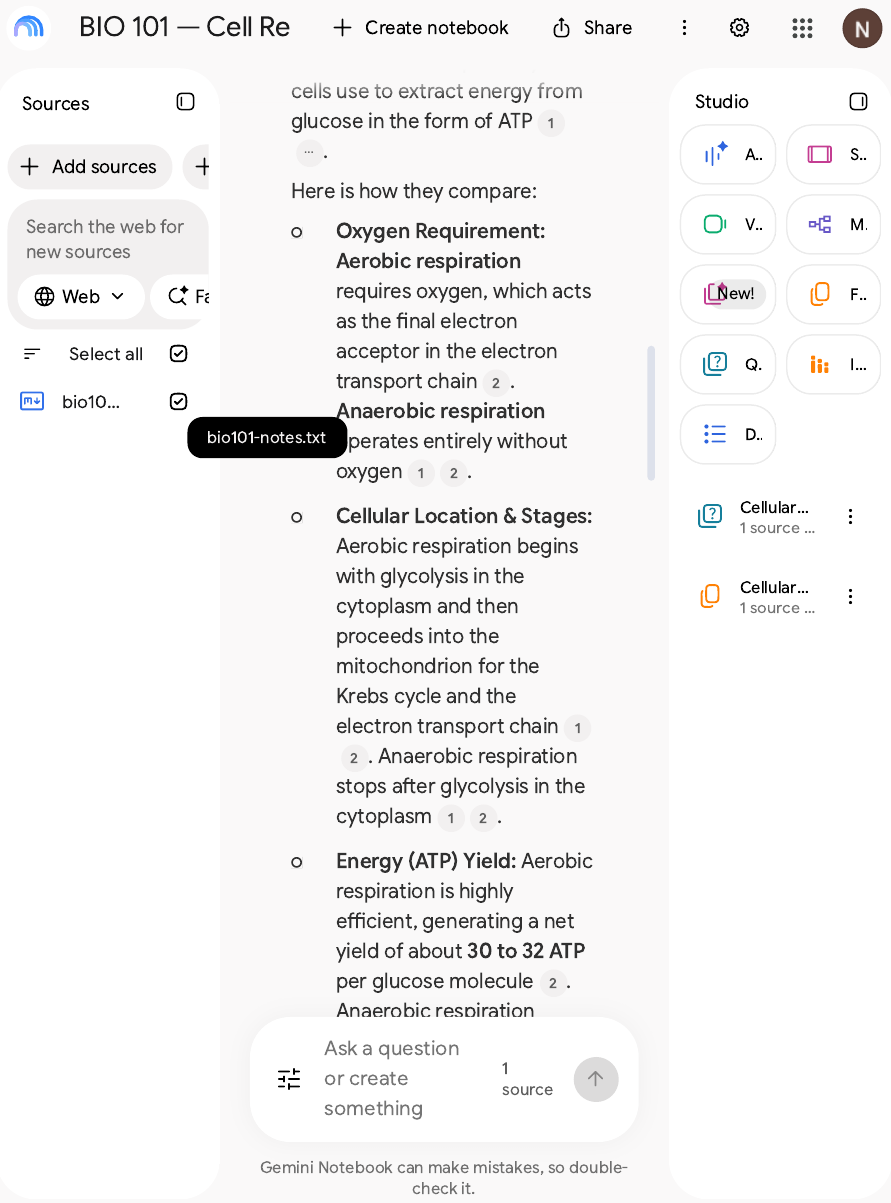
Step 3 — Ask first, in the chat
Before generating anything, ask two or three questions in the chat and click every citation. If an answer has no citation, or the citation does not support it, fix the source.
Step 4 — Flashcards, then only the ones you missed
In Studio, select Flashcards; set difficulty, number and topic with the pencil icon. Mark each card "Got it!" or "Missed it!". On every missed card, tap Explain, read the longer answer, and open the citation. At the end, retake only the missed cards.
Step 5 — A quiz, without your notes open
In Studio, select Quizzes: hard, ten questions, notes closed. Use Hint only after a real attempt. For every wrong answer, tap Explain and read why, with the citation. A quiz you pass with your notes open tells you nothing.
Step 6 — Save what checks out
When an answer is right and its citation supports it, save it to a note. Delete any flashcard that does not match its source. Do not regenerate the same output twice.
Privacy: before you upload anything
This section says only what Google's privacy page says. It states: "The content in Gemini Notebook will not be used to directly train our foundational AI models, unless you choose to provide feedback."
On feedback, the page says that when you share thumbs up or down feedback, Google collects the associated content — prompts, customizations, sources, uploads, outputs — to understand the issue; that it is reviewed by specially trained teams, disconnected from your Google Account before reviewers see it, and retained for up to 3 years; and it asks you not to include confidential or sensitive information in your feedback. For Workspace or Education users, uploads, queries and responses will not be reviewed by human reviewers even with feedback, nor used to train AI models. Data shared with other Google services is used under Google's Privacy Policy and the relevant notices.
The rule: never upload someone else's private data, passwords or bank information. Your sources are visible only to you unless you share a notebook. Respect copyright: do not upload content you do not have the rights to.
Common mistakes and workarounds
Hitting the 50-source cap. Merge small files into one document — five handouts can become one source.
A file too big to import. Split a document over 500,000 words or 200 MB into chapters. A copy-protected PDF fails outright.
Asking five questions in one prompt. This one is a working habit, not a Google rule: grouped questions tend to get thinner answers, so ask one at a time and let each answer carry its own citations.
A new notebook for every assignment. Do not — a new notebook is for a new topic, a new course, or a source set over 50, not a new homework question. Splitting one course means no notebook sees the whole course.
FAQ
Is Gemini Notebook really free?
Yes. A Google account gets 100 notebooks, 50 sources per notebook and every Studio format — no card, no trial, no end date. What is capped is usage, not features: the budget refreshes every five hours up to a weekly limit. Google's plans page.
What happens when my usage limit runs out?
Wait for the next five-hour refresh, unless you have hit the weekly limit. On the web, pick "Generate later" to queue an output, or upgrade. Google's usage-limits page.
Are my files private?
Your sources are visible only to you unless you share a notebook. Google's privacy page says the content will not be used to directly train its foundational models unless you provide feedback. Google's privacy page.
Does it work on mobile?
Yes — an app for Android (10 and up) and iOS, with flashcards and quizzes in Studio. Still rolling out gradually; Google recommends the desktop version for the full experience. Google's mobile app page.
What does "Gemini Notebook" mean?
The new name for NotebookLM. Google renamed it on 16 July 2026 — same standalone product; old notebooklm.google.com links redirect to notebook.google.com. Google's rename announcement.
The bottom line
The free plan is the whole product for most students: 100 notebooks, 50 sources each, every Studio tool, cited answers from your material. The only thing that runs out is the compute budget — and the way to manage a budget is to see it, in Settings → Usage, before you spend it. Start with one real course, one notebook.
Sources
Google's official pages, checked 12 November 2026.
- NotebookLM is now Gemini Notebook — Google Blog
- More compute flexibility in Gemini Notebook — Google Blog
- Gemini Notebook's plans — Help
- Usage limits — Help
- Flashcards or Quizzes — Help
- Add or discover new sources — Help
- Privacy and Terms of Use — Help
- Mobile app — Help
- Google AI plans and prices
- Gemini for Students
- Android Police — querying several Gemini Notebook notebooks in one Gemini chat (third-party; tested 24 October 2026)